
To delete a Loom video, open it, select the menu above the video, choose Delete, and confirm with Permanently Delete. From your library, you can also open a video’s three-dot menu and choose Delete. To delete several at once, tick their checkboxes in the library (Shift-click selects a range) and select the Delete icon in the bar at the bottom of the screen.
Three things to know before you confirm:
- Deletion is permanent. Loom says deleted videos are removed immediately and that its support team cannot recover them. There is no trash to restore from.
- The share link stops working, and the video disappears from every shared workspace and Space where it appeared.
- Only the owner can delete a video. Teammates with edit access cannot delete someone else’s recording.
If you might need the video again, archive it instead. Archived videos are hidden from your library and cannot be viewed by anyone, including you, until you unarchive them from the Archived folder.
Delete Loom videos: the steps at a glance
| Task | Where | Steps |
|---|---|---|
| Delete one video | Video page | Menu above the video → Delete → Permanently Delete |
| Delete one video | Library | Three-dot menu on the video → Delete → confirm |
| Delete many videos | Library | Tick checkboxes (Shift-click for a range) → Delete icon in the bottom bar → confirm |
| Hide without losing it | Library | Three-dot menu → Archive; restore from Archived → Unarchive |
| Remove a departing member’s videos | Workspace admin | Offboarding the member can permanently delete the content they own |
Loom documents deletion on the web. If you mostly record in the desktop or mobile app, open the video in your web library to delete it.
Archive, unshare, or delete?
Deleting is often not the action the user actually needs.
| Goal | Better action | What happens to the link | Reversible? |
|---|---|---|---|
| Hide an obsolete video from everyone | Archive | Nobody can view it, including you | Yes, unarchive it |
| Remove it from a shared Space but keep your copy | Unshare or move it | Space discovery changes | Usually |
| Free a limited recording allowance | Delete after backing up | Existing link breaks | No, permanent |
| Leave a company but preserve business knowledge | Transfer ownership or export first | Can remain available | Yes, if done before account removal |
| Erase a recording that should no longer exist | Delete | Link stops working everywhere | No, permanent |
Loom describes archiving as hiding a video without purging its data, and deletion as removing it from Loom’s servers. If confidentiality is the concern, also review sharing permissions and copies that may already have been downloaded.
Back up the recording first
The most common deletion mistake is saving only the video while forgetting everything around it. Decide whether you need:
- the rendered MP4;
- the transcript or captions;
- title, description, tags, and owner;
- comments and decisions attached to timestamps;
- the original URL for a redirect or migration map;
- viewer or engagement data;
- a record of who should access the replacement.
Use Loom’s native download when your plan and role permit it, or the free Loom downloader for an authorized public share link. For a large library, follow the complete export guide rather than creating an untracked folder of files.
Play the saved copy before proceeding. Check a long video, an edited video, and one with system audio if you are deleting in bulk; representative testing catches export problems earlier than checking hundreds of files afterward.
Delete one Loom video
The exact menu wording may vary, but the safe sequence is consistent:
- Sign in to the workspace that owns the recording.
- Find the video in Library and open it.
- Confirm the title and content—thumbnails are easy to confuse.
- Copy the share URL into your migration or deletion log.
- Select the menu above the video (or the three-dot menu in the library) and choose Delete.
- Read the confirmation carefully: Permanently Delete cannot be undone.
- Confirm only after the backup opens successfully.
- Open the old share link in a private window to verify the intended access change.
If the option is absent, you do not own the video: only owners can delete. Ask the owner; do not remove somebody else’s recording solely because it appears in a shared Space.
Delete Loom videos in bulk
For a small cleanup, tick the checkboxes in the library, Shift-click to select a range, and use the Delete icon in the bottom bar. For a large cleanup, add structure before selecting anything.
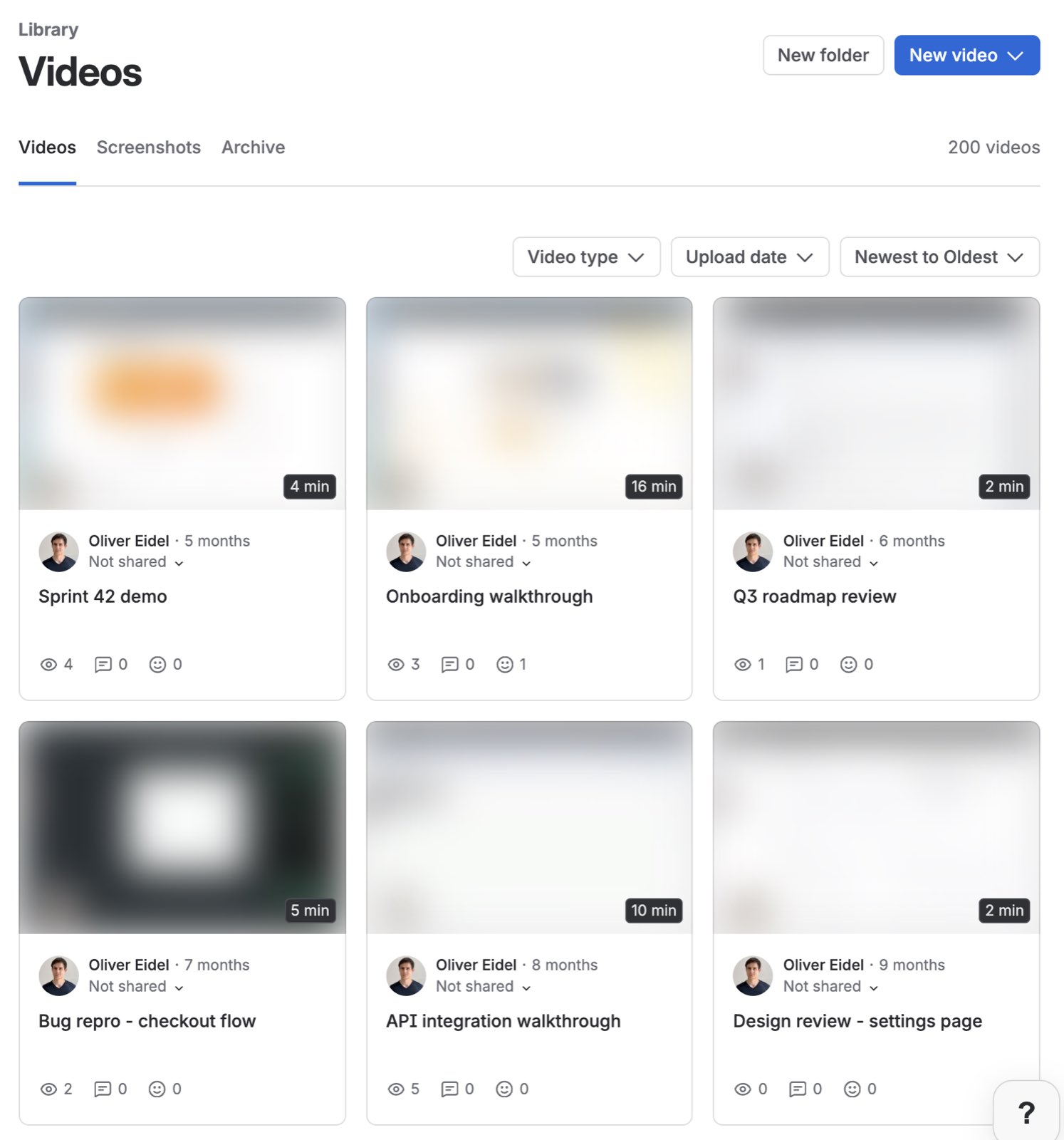
- Filter by owner or folder. Avoid mixing personal, shared, and company-owned recordings.
- Export an inventory. Even a simple sheet with title, URL, owner, created date, and decision creates accountability.
- Classify recordings. Use keep, migrate, archive, delete, and needs-owner-review.
- Run a small batch. Archive first if you are unsure; archived videos can be restored, deleted ones cannot.
- Verify affected links. Check that archived and deleted items behave differently if you use both actions.
- Continue in named batches. Record who approved each batch and when it was removed.
Do not bulk-delete across an organization immediately before cancelling. Account closure, ownership changes, and plan downgrades can have different consequences; sequence the project so the replacement library is already working.
Deleting to get under Loom Starter’s limit
Loom Starter currently allows 25 videos per person with five-minute ordinary screen recordings. That is a library cap, not a monthly bucket that automatically resets. Deleting old videos may create capacity, but it also turns a useful knowledge base into a rotating buffer.
Before repeatedly deleting history, compare three options:
- keep Starter and reserve it for disposable recordings;
- pay for the Loom features and storage the team actually uses;
- migrate durable recordings to a tool or archive designed for the intended workflow.
Chairkick does not offer a permanent free tier to new workspaces. New accounts receive a 14-day Pro trial; Pro costs $9 per recorder monthly or $72 yearly, and ordinary share-link viewers do not need paid seats. If you are evaluating a move, test representative recordings through the Loom importer before changing the source library.
What happens to links and embedded videos?
Any page, ticket, knowledge-base article, or email containing the old Loom URL may now lead to an unavailable video. Search important systems for the share URL before deletion. For a migration:
- create the replacement recording or import;
- verify its permissions and playback;
- replace links in customer-facing and internal documentation;
- keep a URL mapping for links you cannot update immediately;
- delete the Loom original only after the replacement has been used successfully.
Embedded Loom players deserve special attention because a broken player can look like a website defect. Check high-traffic pages and onboarding flows manually.
When an account or employee is being removed
Do not solve an ownership problem by deleting the user first. Identify recordings the business must retain, transfer or migrate them while the owner still has access, and confirm the destination owner. Loom says admins can permanently remove a user’s content when offboarding them, and that a user who deletes their own Loom account permanently deletes everything they own across all their workspaces.
For a subscription change, pair this guide with the cancellation checklist. The safest order is inventory, export or migrate, verify, replace links, then cancel or remove accounts.
A deletion checklist
Before the final confirmation, make sure:
- the recording is the intended one;
- its owner or an admin approved removal;
- any required MP4, transcript, comments, and metadata are preserved;
- the backup plays on another device;
- replacement links have been updated;
- you accept that Loom cannot recover the video afterwards;
- the deletion is recorded if the content matters to the business.
Deleting one disposable test video should take seconds. Deleting a working library is an information-migration project. Spend the extra few minutes on inventory and verification—the cost is tiny compared with recreating a walkthrough after its context has disappeared.
Sources and fact check
Checked October 1, 2026 against Loom’s help center: Delete your videos, Understand permanent video deletion, and Archive your videos.