The Chromebook screen recorder that needs no install.
Record your screen, camera, and voice directly in Chrome, then share one link. No extension, desktop app, or viewer account. Record your first video with no account, then try everything free for 14 days — $9 a month after, no credit card.
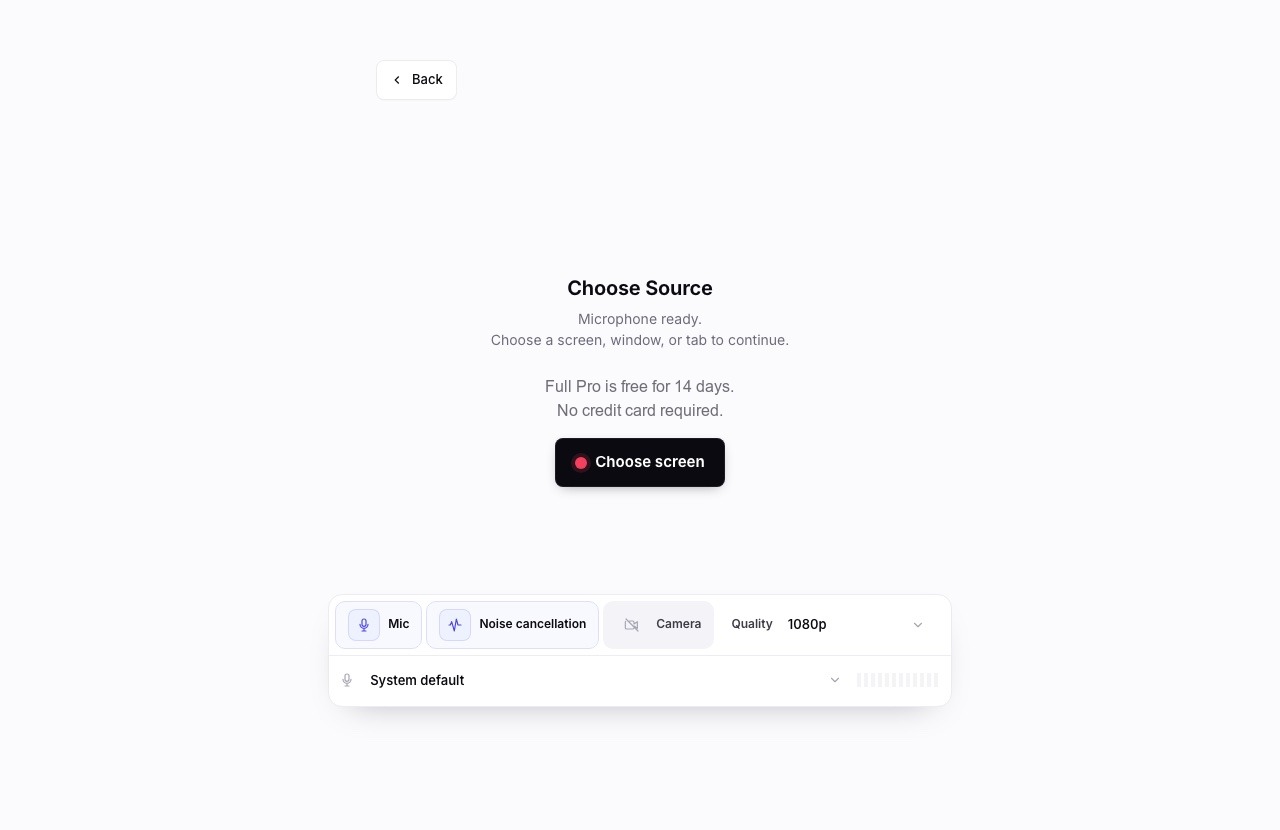
How to screen record on a Chromebook with audio
No extension, no download — everything happens in the browser tab you already have open.
-
1.Open Chairkick and start a recording
Start your free trial at chairkick.com in Chrome on your Chromebook and click "New recording". Nothing installs — it's a normal web page.
-
2.Allow the microphone
Chrome asks for mic permission once — that's your voice track. You can pick a headset or external mic from the input menu, and test your mic first if you're not sure it works.
-
3.Choose what to record — and tick the audio box
Pick a screen, window, or tab. To capture the sound playing on your Chromebook — a video, a call, music — choose a tab and enable "Also share tab audio" in Chrome's picker. Chairkick mixes it with your mic automatically.
-
4.Record, then stop
Talk through what you're showing. Add your camera in the corner if you want a face on it. When you stop, the recording uploads and processes on its own.
-
5.Share the link
You get an unlisted link with a transcript and AI summary. Anyone can watch it — no account, no download, no file hunting in your Downloads folder.
Prefer no tools at all? ChromeOS has a built-in screen capture in the quick-settings tray (or Ctrl + Shift + Show windows) — it saves a video file to your Downloads folder. It's fine for a quick clip you'll keep on the same machine; the comparison below shows where it stops.
Your options on a Chromebook.
The built-in capture tool, the classic extension, and Chairkick — compared honestly.
| Capability | Chairkick | ChromeOS built-in capture | Screencastify |
|---|---|---|---|
| Install needed | None — runs as a web page | None — part of ChromeOS | Chrome extension |
| Voice-over from your mic | Yes, with noise cancellation | Yes (toggle in the capture tray) | Yes |
| Tab audio in the recording | Yes — mixed with your mic | Yes — device audio option in current ChromeOS | Yes |
| Where the recording lives | Cloud — instant share link | A file in your Downloads folder | Cloud share link |
| Transcript + AI summary | Included with every recording | No | On paid plans |
| Free trial | 14 days of full Pro — 4K, 2-hour recordings, no credit card | Free with ChromeOS | Limited free plan, 30-minute cap |
Details checked against ChromeOS's screen capture tool and Screencastify's public site on August 4, 2026.
On a school-managed Chromebook?
Honest answer: it depends on your administrator. School and work Chromebooks are managed by policies that can block camera and microphone access, extension installs, or entire sites — and nothing you do locally can override that.
Chairkick has one real advantage there: it needs no extension, so the usual "installs are blocked" wall doesn't apply. If the mic permission prompt appears, you're good. If it never appears, or chairkick.com won't load, your admin has locked it down — ask them, because no screen recorder can route around device policy.
Frequently asked questions
Can you screen record on a Chromebook with audio?
Yes, two ways. ChromeOS's built-in capture tool records your screen with microphone and, on current versions, device audio, and saves a file to Downloads. Chairkick records in the browser with your mic and tab audio mixed together, and gives you a share link with a transcript instead of a file.
How do I record my screen and voice at the same time?
Start a Chairkick recording, allow the microphone when Chrome asks, and speak while you record — your voice is captured alongside the screen automatically. No setup beyond the one permission prompt.
Where do Chairkick recordings go on a Chromebook?
To your Chairkick library in the cloud, not your Downloads folder. Each recording gets an unlisted share link anyone can watch without an account — which also means the video isn't stuck on one device.
Do I need to install an extension?
No. Chairkick runs as a normal web page using the browser's built-in recording APIs. That also matters on managed Chromebooks where extension installs are blocked.
How long can I record for free?
You can record your first video without an account — up to 5 minutes, saved in your browser until you sign up. Chairkick's 14-day free trial then gives you full Pro — recordings up to 2 hours at up to 4K — with no credit card required. After the trial, your videos and share links keep working forever; subscribing to Pro resumes recording.
Ready to record on your Chromebook?
Open Chrome and record your first video right now — no account needed. Sign up afterwards to get your share link and every Pro feature free for 14 days, then $9 a month.