To download a Loom video you own, open its share page, choose the More actions menu, and select Download. If that option is missing, the usual causes are your plan, your role, the owner’s download settings, or a recording that has not finished processing. For an authorized public Loom share link, you can also use Chairkick’s free Loom video downloader without creating an account.
The important distinction is ownership. Downloading your own recording or one you have permission to save is straightforward. A visible share link is not permission to copy somebody else’s private, paid, confidential, or copyrighted material.
Choose the right download route
| Your situation | Best route | What you receive | Main limitation |
|---|---|---|---|
| You own the Loom and have an eligible paid role | Loom’s Download action | MP4 from Loom | Loom currently reserves creator downloads for paid workspaces |
| You have an authorized public share or embed link | Browser downloader | MP4 saved to your device | The link must be accessible and downloading must be authorized |
| The owner disabled viewer downloads | Ask the owner | Owner-supplied MP4 or enabled access | There is no legitimate settings bypass |
| You need many videos for a migration | Import by share link | Hosted copies and new share pages | Verify the library before cancelling Loom |
| You only need offline access briefly | Loom mobile offline viewing, where available | App-managed offline copy | Not a portable MP4 backup |
Have a public Loom link? Save an authorized recording as an MP4 directly from your browser. Download the Loom video
If the real objective is a backup or migration, downloading files one by one is often the slowest route. Skip ahead to the bulk section before committing an afternoon to repetitive clicks.
Download your own Loom video
Loom’s current help documentation says downloads are available to admins and creators in Business, Business + AI, and Enterprise workspaces. Starter users and limited roles may therefore see no download action even when they created or can view the recording.
For an eligible recording:
- Sign in to the workspace that owns the video.
- Open the recording from your Library rather than relying on an old shared tab.
- Wait until processing, captions, and edits are complete.
- Open More actions on the share page.
- Select Download and save the MP4 somewhere you can identify later.
- Play the beginning, middle, and end of the saved file before treating it as a backup.
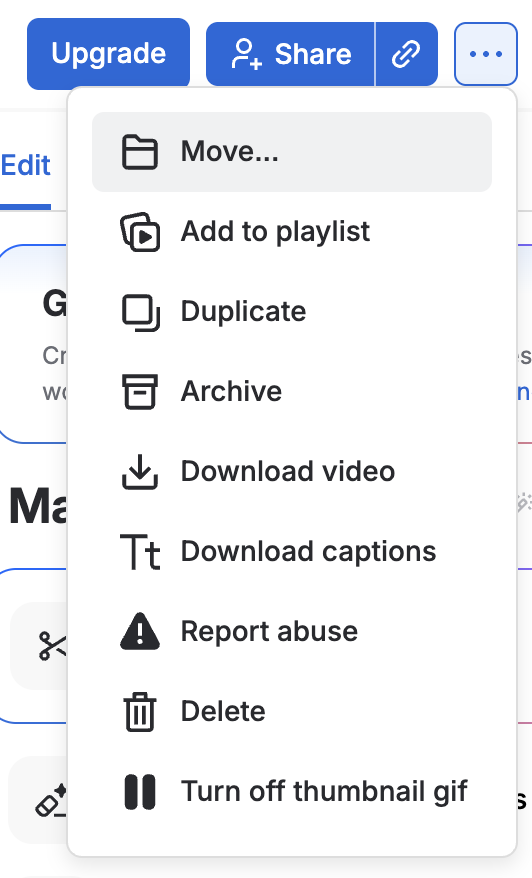
The exported MP4 contains the rendered video. It does not recreate Loom’s comments, viewer analytics, workspace folders, permissions, transcript editing state, or the original share URL. If those matter, record them separately or migrate into another hosted system.
Download from an authorized public link
If someone has given you permission to retain a video and the share page is publicly accessible, paste the Loom share or embed URL into the Loom downloader. Direct MP4 recordings are fetched from Loom. Streamed recordings are assembled locally in a supported browser, so the conversion does not require uploading the video to Chairkick.
The practical flow is:
- Copy the complete Loom share or embed URL.
- Paste it into the downloader and start the lookup.
- Keep the browser tab open while a streamed recording converts.
- Save the resulting MP4 and play it before closing the source.
Use the tool only for content you own or are authorized to download. It does not unlock private pages, passwords, organization-only recordings, or a video that Loom no longer serves.
Why the download button is missing
A missing or disabled control is usually explainable without a workaround.
Your plan or role does not include downloads
Check both the workspace plan and your membership role. Loom’s download troubleshooting page currently limits native downloads to admins and creators in paid Business-level workspaces. Being able to watch or edit a title does not necessarily grant the export entitlement.
You are in the wrong workspace
People who belong to several Loom workspaces can open a recording under the wrong account context. Switch to the workspace that owns the video, find it in the library, and try again. An old link alone does not prove which workspace or role is active.
Processing is not finished
Long recordings and bursts of recent captures can take time to prepare. Loom recommends allowing up to 30 minutes before troubleshooting. Refresh once, try a current Chrome session, and confirm that the recording plays all the way through.
The owner controls access
For a video you do not own, ask the owner to download it, send the file, or change the relevant permissions. Do not treat a missing button as an invitation to evade access controls.
How to move several Loom videos
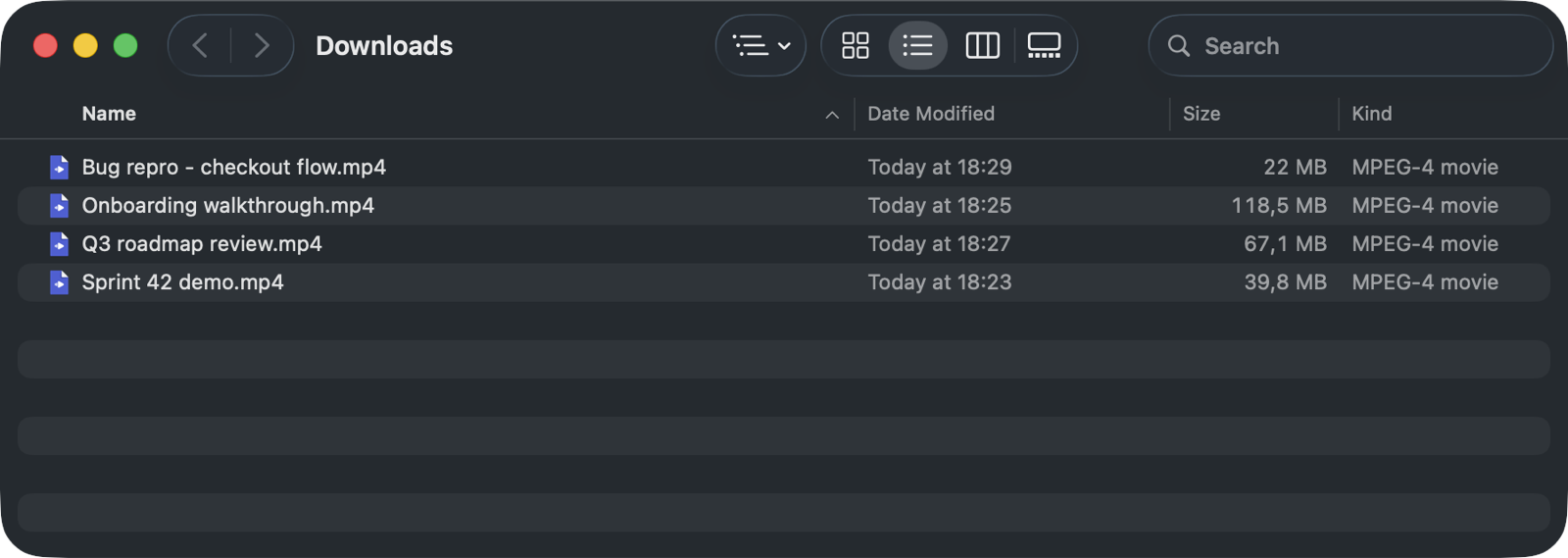
Loom does not present a universal “download my entire library as MP4” button for every plan. For a modest set, establish a repeatable folder structure:
- Inventory recordings by owner, purpose, and importance.
- Download a representative short, long, edited, and older video first.
- Name files consistently, for example
2026-08-project-topic.mp4. - Store a small CSV or document containing title, original URL, owner, and destination.
- Work in batches and verify each batch before deleting anything.
If you are changing platforms, a direct import is safer than building a pile of anonymous MP4s. Chairkick’s Loom migration flow accepts share links, creates new hosted recordings, and lets you check playback and transcripts before replacing old links. Read the full Loom export checklist when cancellation is part of the project.
Verify the backup before deleting anything
An MP4 existing on disk is not enough. Check that:
- its duration roughly matches the source;
- audio is present and synchronized;
- the screen remains readable at important moments;
- edits and trims appear as expected;
- the file opens on a second device or player;
- business-critical comments or transcript text have been preserved elsewhere;
- the destination has a backup rather than a single copy on one laptop.
Keep the original Loom recording until the new copy has passed those checks. If storage limits are pushing you to delete, follow the Loom deletion guide and distinguish archiving from permanent removal.
The short answer
Use Loom’s own Download action for a recording you own on an eligible plan. Use the browser downloader for an authorized public link. If the button is missing, check plan, role, workspace, processing, and owner permissions in that order. For more than a handful of videos, inventory and migrate the library instead of clicking blindly—and never cancel or delete the originals until representative copies have been played and verified.