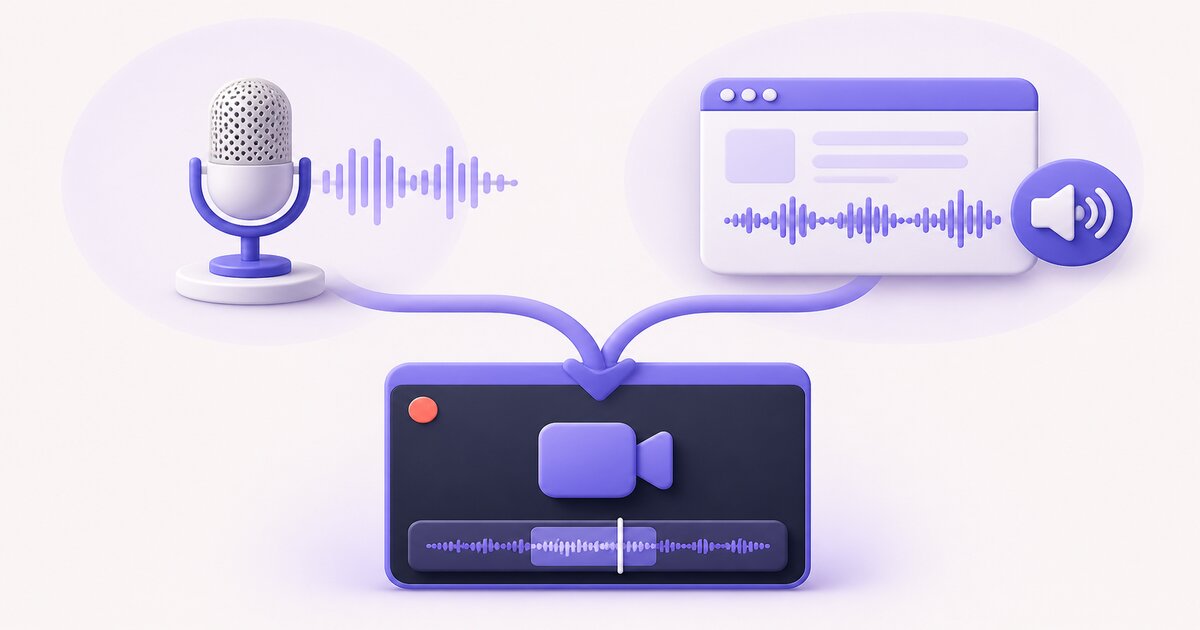
Yes, screen recording can record audio, but only the sources you turn on. There are two: the microphone (your voice and sound in the room) and device or system audio (sound the phone or computer itself plays). By device:
- iPhone and iPad: app sound is usually recorded, unless the app blocks it. Your voice is recorded only if you touch and hold the Screen Recording button and turn Microphone on.
- Android: before tapping Start, you choose device audio, microphone, both, or no audio. The wording varies by phone maker.
- Mac: the built-in recorder (Shift + Command + 5) records only the microphone you select. It does not capture the computer’s own sound.
- Windows 11: Snipping Tool and Xbox Game Bar can record both system sound and your microphone. Each has its own toggle.
- Chromebook: yes. In Screen record settings, choose device audio, microphone, or both. GIF recordings never have sound.
Turning the volume down does not reliably mute a recording of device sound, and room sound only gets in through the microphone. Both are explained below. Before an important recording, make a ten-second test with your voice and a known device sound, then play it back.
Need to check your own audio setup? Do a quick live test before you hit record. Test your microphone
Quick answer by platform
| Platform and built-in tool | Your voice (microphone) | Computer or phone sound | Where to turn it on |
|---|---|---|---|
| Windows, Snipping Tool | Yes, optional | Yes, optional | Audio toggles on the recording bar (Windows + Shift + R) |
| Windows, Xbox Game Bar | Yes, optional | Yes | Game Bar Settings → Capturing (Windows + G) |
| Mac, Screenshot toolbar or QuickTime | Yes, if a microphone is selected | No | Options → Microphone (Shift + Command + 5) |
| Chromebook, Screen capture | Yes, optional | Yes, optional | Screen record → Settings: Device audio, Microphone, or both |
| iPhone and iPad, Screen Recording | Off until you turn it on | Usually, unless the app blocks it | Long-press Screen Recording in Control Center → Microphone |
| Android, Screen record | Optional | Optional on most phones | Audio choice before tapping Start |
| Browser recorder | Yes, after permission | Tab audio when you tick the share-audio box | Screen-share dialog and microphone permission |
If a cell says “optional”, the default may be off. Check it before every important recording, because updates and new devices can reset audio settings.
If you screen record with the volume down, will it record audio?
Usually yes. Device or system audio is copied digitally from the app, not picked up from the speaker. Lowering the volume or wearing headphones normally still leaves sound in the recording. What does silence it is turning the sound off at the source. Examples: muting the app or the browser tab, setting an iPhone to Silent for apps that follow the Ring/Silent switch, or turning that app down in the Windows volume mixer.
Does the volume you record at matter? It can. Some devices record system sound at the same level whatever the volume is set to. On others the recording gets quieter with the volume. Leave system and app volume at a normal level, mute notifications you don’t want recorded, and check a short test.
The microphone works differently. Speaker volume has no effect on how loud your voice records; the input level and the distance to the mic do. If your recorder can’t capture device sound and you rely on the mic catching the speakers, low volume means a quiet, echoey recording.
Does screen recording capture audio in the room?
Only through the microphone. With the mic on, the recording picks up your voice plus anything else loud enough nearby: people talking, a TV, keyboard noise. With only device audio on, nothing from the room is recorded. That’s useful if you want app sound without background noise. To record yourself talking over the screen, turn the microphone on. On iPhone and Mac that’s a manual step every time you set up the recorder.
Microphone, system, and tab audio are different
| Source | What it captures | Common use | Common failure |
|---|---|---|---|
| Microphone | Your voice and sound in the room | Narration, interviews, explanations | Wrong input selected, permission denied, hardware muted |
| System or device audio | Sound produced by the computer or phone | App sounds, media, meeting participants | Recorder or app does not support capture; protected content blocks it |
| Browser-tab audio | Sound from one shared browser tab | Web demos, videos, browser-based calls | “Share tab audio” was not selected, or a window/screen was shared instead |
Headphones do not prevent internal system or tab capture because that audio is copied digitally. They do reduce the chance that a microphone re-records speaker output and creates echo. If your tool cannot capture system audio, playing sound through speakers and catching it with the mic is a poor fallback: it adds room noise, echo, and lower quality.
Windows screen recording audio
The Snipping Tool in Windows 11 records the screen with Windows + Shift + R. Microsoft added optional PC audio and microphone voice-over to its recorder in 2023, and its settings can make either source the default for new recordings. Turn on the source you need on the capture bar before pressing Start.
Xbox Game Bar can include system audio and microphone audio. Open it with Windows + G, open Settings → Capturing, and select the desired audio scope. Microsoft’s current instructions use All to include app and system sounds. Toggle the microphone during recording with Windows + Alt + M.
Game Bar is designed around recording a game or application rather than every part of the Windows desktop. If the target window is unsupported, use Snipping Tool or a dedicated recorder and check the available audio toggles before starting.
When a Windows recording is silent:
- Confirm the volume mixer shows activity for the app being demonstrated.
- In Game Bar’s Audio widget, verify the intended output and input devices.
- Open Settings → Privacy & security → Microphone and allow access for desktop apps.
- Select All under Game Bar’s Capturing audio setting if app or system sounds are required.
- Make a short test while both speaking and playing a notification or video.
Mac screen recording audio
The built-in macOS Screenshot recorder opens with Shift + Command + 5. Under Options, choose a microphone to add narration. If no microphone is selected, the built-in capture can be silent.
Apple’s Screenshot instructions expose microphone selection but not a general system-audio input. For reliable app or system sound, use software that explicitly supports system audio on the installed macOS version, or capture a browser tab with its audio-sharing option. Some apps install an audio component or request additional Screen & System Audio Recording permission to make this possible.
Check System Settings → Privacy & Security for both Microphone and Screen & System Audio Recording access. Permission changes may require quitting and reopening the browser or recorder. macOS can remember a denied choice, so a recorder may look correctly configured while receiving no signal.
For a call, do not assume the built-in microphone will produce a clean copy of the other participants. With headphones it will usually capture only your voice; with speakers it may capture a low-quality, echo-prone version of the call through the room.
Chromebook screen recording audio
Current ChromeOS screen capture can record device audio, microphone, or both. This is important because older advice often says Chromebook’s built-in recorder cannot capture device sound; Google’s current documentation shows that it can.
Press Shift + Ctrl + Show windows or open Screen Capture from Quick Settings, choose Screen record, then open Settings. Select Device audio, Microphone, or Device audio and microphone. ChromeOS can also add a front-camera feed and show clicks and keys.
GIF capture does not contain audio. If you selected GIF rather than video, silence is expected. Standard recordings are saved as WebM files in Downloads or the folder selected in Screen Capture settings. Stop a recording with Search + Shift + X. For a step-by-step walkthrough, see the Chromebook screen recorder guide.
iPhone and iPad screen recording audio
Open Control Center and start Screen Recording to capture the screen. To add your voice, touch and hold the Screen Recording control, turn Microphone on, and then start. Apple explicitly documents the microphone step and notes that some apps do not allow their content to be recorded.
Device media may be present in the recording when the source app permits it, but do not rely on that for calls, streaming services, or protected media. App privacy and copyright controls can remove sound, video, or both. Test the exact app and workflow.
If narration is missing, repeat the long-press step and verify the microphone button is on. Also check Settings → Privacy & Security → Microphone for the relevant app, disconnect an unexpected Bluetooth input, and make sure the phone is using the intended microphone.
Android screen recording audio
Swipe down from the top of the screen twice, tap Screen record, and choose whether to record audio before tapping Start. On current Android devices, the start dialog commonly offers device audio, microphone, both, or no audio. The wording and available choices vary by manufacturer and Android version, so look for Record audio or Sound before tapping Start.
Apps can prevent internal sound capture. Video-call apps, banking apps, and DRM-protected streaming media are common examples. A recorder showing “device audio” does not override the source application’s security or privacy policy. If only one specific app is silent while other device sounds record correctly, the restriction is probably app-specific rather than a broken microphone.
For reliable instructions, use the phone manufacturer’s support page as well as Android guidance because Samsung, Google Pixel, and other vendors customize the recorder.
Browser screen sharing and tab audio
In Chromium-based browsers, choosing a browser tab usually gives the clearest tab-audio path. Select the tab and enable the share-audio checkbox. Sharing a window or an entire screen can expose different audio choices depending on the browser and operating system.
The browser still asks separately for microphone permission. A web recorder can therefore receive tab audio but no narration, or narration but no tab audio. Look for independent microphone and shared-audio meters or toggles.
If a demo includes only one web app, sharing that tab is often safer than sharing the entire desktop: notifications remain private and the audio source is easier to identify. If you must move between applications, use a recorder that explicitly supports system audio on your OS and run a test first.
Diagnose a silent recording
| Symptom | Likely cause | Next check |
|---|---|---|
| Voice missing, app sound present | Microphone off, denied, or wrong input | Input meter, OS mic permission, hardware mute, Bluetooth device |
| Voice present, app sound missing | System/tab audio not shared | Capture-source dialog and “share audio” option |
| Everything silent | No source enabled or player muted | Record a new ten-second test and play it in another player |
| Only one app is silent | App privacy or DRM restriction | Test an unprotected sound from another app |
| Echo or doubled voices | Speaker sound is entering the mic as well as digital capture | Wear headphones or disable one duplicate source |
| Sound drifts out of sync | Device load, Bluetooth latency, or recorder issue | Close heavy apps, use wired audio, shorten the test |
| Mic works in calls but not recorder | Recorder lacks OS or browser permission | Re-enable permission and restart the recorder |
Also verify that the recording file has an audio track rather than trusting a thumbnail preview. Try a second player, check its mute state, and inspect the waveform if an editor provides one.
A browser workflow with both sources
Chairkick records from a modern desktop browser. You choose a microphone and a screen or browser tab; when the browser offers shared audio, that source is mixed into the recording with narration. A preflight meter makes it possible to test the microphone before the real take. The resulting share page includes captions and a transcript after processing.
Browser and operating-system permission rules still apply, so Chairkick cannot capture audio an app or platform refuses to share. The useful difference is that the capture choices happen in one record-and-share workflow rather than requiring a local file and separate hosting. Try the microphone test before a high-stakes recording, or use the Chromebook recorder guide for a ChromeOS walkthrough.
Frequently asked questions
Can I record my voice while screen recording?
Yes. Turn the microphone on before you start, and make sure the recorder has microphone permission. On iPhone and on the Mac’s built-in recorder, you have to turn the microphone on yourself. On Windows, Chromebook, and Android, it is an option on the recording bar or start dialog.
Does Chromebook screen record have audio?
Yes. In the Screen capture toolbar choose Screen record, open Settings, and pick Device audio, Microphone, or Device audio and microphone. GIF captures are always silent.
Does a Mac screen recording capture computer sound?
Not with the built-in Screenshot toolbar or QuickTime: they record the selected microphone only. To include app or system sound, use a recorder that supports system audio and allow Screen & System Audio Recording in Privacy & Security, or share a browser tab with its audio.
Can I record a video call with sound?
Many recorders can, but some call and streaming apps block audio or video capture, especially on phones. Record a short test first. Tell participants before you record and follow the consent rules that apply to you.
Why is my screen recording silent?
Usually no audio source was turned on, the recorder lacks microphone permission, or the app you recorded blocks capture. Use the diagnosis table above, then make a ten-second test before the real take.
Sources and fact check
Platform behavior was checked October 6, 2026 against official instructions and announcements for Snipping Tool audio recording, Xbox Game Bar, recording a Mac screen, iPhone screen recording (with sound), Chromebook screen capture, and Android screen recording.